Category Archives: Software
Passport Advantage Revisited 2 years later…
In August 2011 I posted an article giving a detailed analysis of the design of the IBM Passport Advantage website. That article received a great deal of attention, not only from the Lotus user community, but also from executives at IBM. I was even contacted by the person who oversaw the team responsible for the site. Finally, I thought, we would see some relief in our pain dealing with this website.
It’s nearly 2 years later. There have been some changes to the IBM websites, but Passport Advantage has had no significant changes. I’m here at IBM Connect 2013 to once again ask the question “When will you fix this website?” If you’re here, watch for it at “Ask the Product Managers” session. I will report the results later.
Microsoft hires Lotus Professionals for Cloud Computing at Office 365
That’s right. You read the headline correctly. I’m not the only Lotus professional working on the Office 365 project. My friend, a fellow Lotus professional just joined the team. Surprisingly, I didn’t know anything about it until a week before he started. Now you might be asking yourself: “What would Microsoft need Lotus professionals for?” No, it has nothing to do with things like mail migrations. It’s all about BlackBerry Enterprise Servers and messaging. I think this illustrates more than ever that if you have universal skills, like understanding the concepts of messaging or troubleshooting, you are highly marketable, regardless of the details of what product those skills are used on. It’s not about being a professional of a particular brand. It’s about being an expert of a process. Conceptual understanding transcends the syntactic details. Demonstrate that and you will display higher value (DHV).
Now for some quotes you might hear among us Lotus experts at the Microsoft:
“What do you mean, I can’t paste a screen shot in a Lync IM chat?”
“Where is the ‘Send and File’ feature?”
“You mean if I want to file a message into multiple folders, I have to make copies of it?”
“Why does everybody CC everyone on the team for every email? Don’t they have discussion Dbs for that?”
“What do you mean, we don’t have a knowledge base? How do we collaborate? Oh, CC everybody.”
“I’ll just Google that, uh, I mean Bing it.”
“I could do this so easy in a Notes app!”
“How do I create a reminder on my calendar?”
“Notepad++ ? Don’t let anyone see you using that.”
“Where is the workflow in this app?”
Yes, my friend, welcome to the team.
Viruses Happen

The good news: I still have never had a computer get infected with an email virus while using Lotus Notes. That 18-year run is still going.
The bad news: My laptop got a virus through a random act of browsing. It happened thanks to a touch pad strategically located between the palms of the hands where it can occasionally cause the mouse to move or misread a mouse click. It has happened many times in the past. I’m typing away when suddenly the cursor jumps to somewhere else on the screen and my typing starts appearing in the wrong place. This time it went to the browser window and who knows what input it took before I stopped typing. It’s the first time being a fast typist was a liability for me. I just know that suddenly I started getting a chain of popups.
I closed everything and it didn’t look like anything evil happened, but since then my computer started crashing randomly and would never come out of hibernation properly. A full virus scan revealed a problem, but it needed the help of a Norton Anti-virus bootable CD. OK, I created the bootable CD from another computer and ran the repair tool. After that the PC quit booting altogether. This was a case where the cure was worse than the illness. No, it won’t even restore to a previous recovery point. Sure, I could resort to a system image recovery that I made some time ago, but there are no guarantees of recovery at that point. Who knows what devilry is at work with the Norton tool and virus.
I put in a call to Norton support and pretty quickly the guy at the other end decided to escalate this one to the next level. They actually scheduled a time the support guy would call back. This is going to be a true test of Norton’s support service. I’ll keep you posted. Meanwhile, the blog will continue to be quiet thanks to this new time-sucking event.
Website Design Case Study: IBM Passport Advantage Website
Every year at Lotusphere in the Ask the Developers session someone will ask IBM “When are you going to make the Passport Advantage website user-friendly?!” And every year the response from IBM is “What are you talking about? It’s fine!” Apparently usability studies are unnecessary. After all, this is IBM. How could the world’s second or third largest software company NOT know how to build a website? Who are we to give them advice, right? We’re just customers, not experts on web development, right? We are mere ersatz of IBM’s erudite web developers.
Well recently I have been refreshing my web development skills in a degree program at Bellevue College and I would like to think I have become more than just a dilettante of web design. As part of my studies, I am using the Passport Advantage website as a case study in best (and worst) practices in web design. I would like to bring you along for the lesson. Please join me in this discussion of what does and doesn’t work in web design, particularly as it relates to the success of the IBM Passport Advantage website in achieving its goal. Hopefully by this vetting, all of us can learn something from this world class international website representing the third most valuable brand in the world.
My classmates don’t have access to log into this website. So I will include some screen shots. Hopefully this does not infringe on any copyrights. This is intended for review by my classmates in the web design class and web authoring program for educational purposes only.
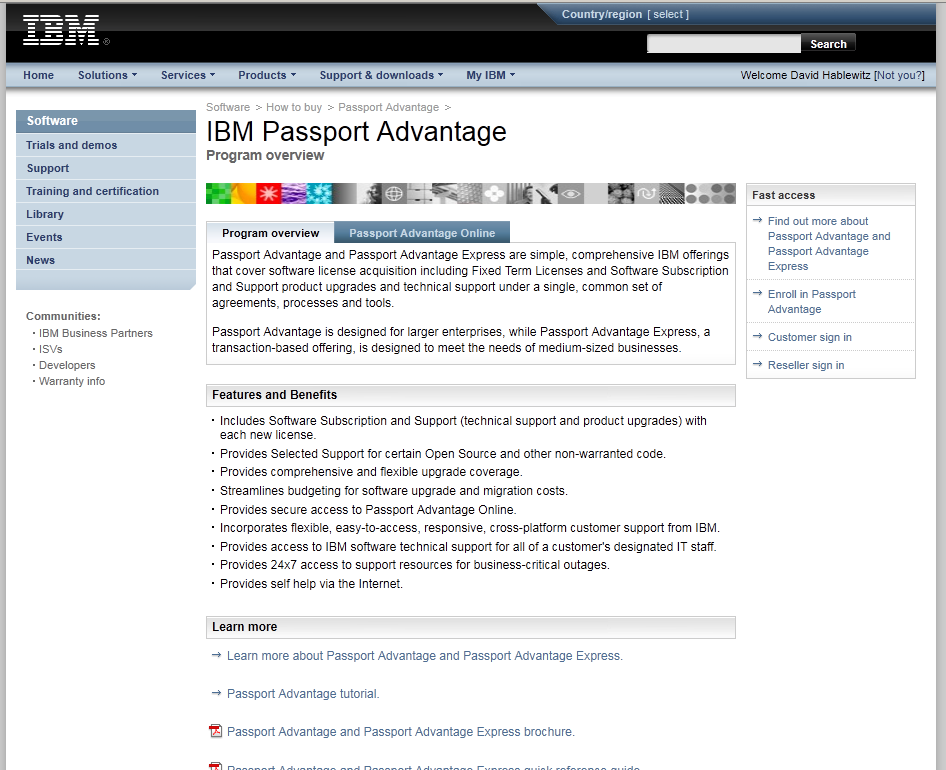
First, let’s find the URL. If I were to guess at it so I could go directly to it, I would expect something like http://www.ibm.com/passportadvantage . But that doesn’t work. So let’s go to the IBM home page, http://www.ibm.com and look for a link. You can find it on IBM’s home page, though with some effort. You won’t find it in any of the menus at the top of the page, but if you scroll down, you can find it “below the fold” under the Popular Links list. For that reason, I expect most people just use a search engine to find the site. I searched for “Passport Advantage” on Google.com and it came up as the first link. It was the second link listed on both yahoo.com and bing.com. It was also the first link in the results list when searched directly on the IBM website. Here is the landing page for all of these. The URL is http://www-01.ibm.com/software/howtobuy/passportadvantage/
<01_landingpage>
(click image to enlarge)
Not exactly an intuitive URL. Note in the screen shot that it already knows who I am. Am I logged in? Well, no. I need to click on the Customer sign in link in the box on the right labeled “Fast Access”.
Note that it instructs to use my email address for the user name. Not exactly. Some accounts (like mine) require the username that was created, NOT the email address.
<02_loginpage>

(click image to enlarge)
By the way, if I click on the link that says “Not you?” beside my name in the top right, I get this error page with no way back but to close the browser and start over:
<03_switchusererror>

(click image to enlarge)
After logging in, you get to what I will call the “homepage” of Passport Advantage. Actually there is no home page for Passport Advantage and there is never an obvious path back to this page. I could find no links that lead back to this page except by logging in. The Home link on this page goes to the home page of ibm.com and once you go there, good luck trying to get back to Passport Advantage. Assuming you know about the link at the bottom of the page, you’ll get back fairly easily. But most people just google it again. (even if you call customer support, they will direct you to find it this way!)
<04_homepage>

(click image to enlarge)
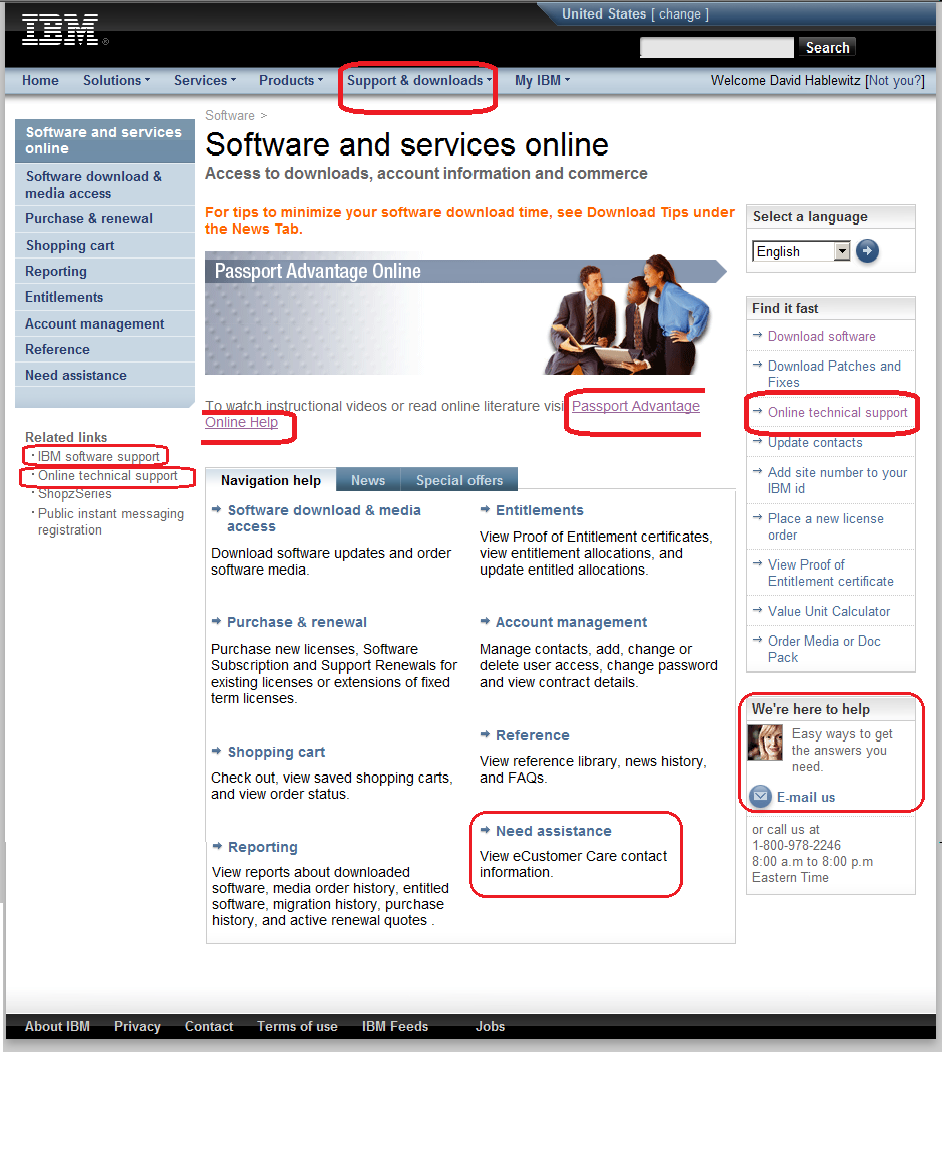
Great now you’re on the “homepage”. There are primarily 2 reasons most Lotus professionals visit this site: 1. To open a PMR with technical support or 2. To download software. Let’s start with getting technical support. Look closely. There are no less than 7 links to get some kind of help, not counting the phone number listed in the bottom right corner, which by the way, is NOT the number to call to reach technical support. Each of these 7 links go to different pages. The one to open a ticket with technical support (called a PMR) happens to be the last one in the left pane, labeled “Online technical support”. This would seem obvious but for the 6 other links to support on the page. By the way, if you visit a page and then hit the Back button, you will occasionally get an error instead and it will prompt you to log in again.
<05_supportLinks>
(click image to enlarge)
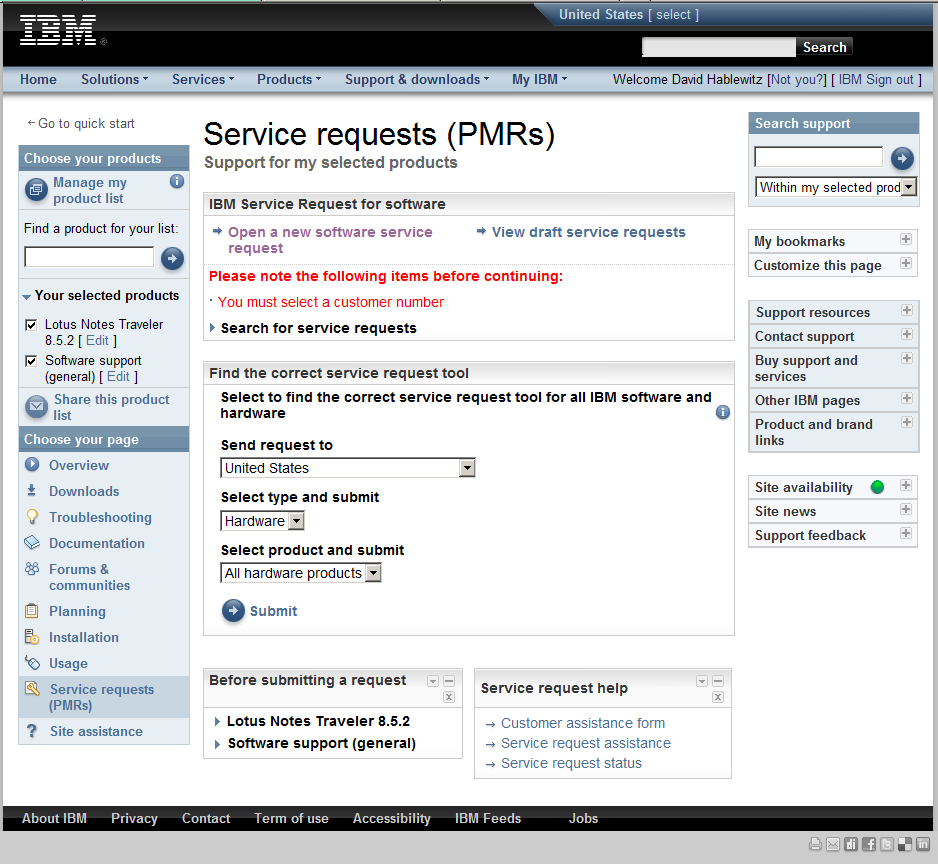
Once you get to the place to enter a PMR with technical support, you may want to get back to the “homepage”. Which link on this page do you think you should select?
<06_whereishome>

(click image to enlarge)
If you chose Home you would be wrong and once there you would not be able to use the back button to return here.
If you chose Return to the IBM Support Portal you would also be wrong. (See the next screen shot.)
The correct link is actually under related links. Go figure.
(click image to enlarge)
Now let’s look at the second common reason to visit this site: downloading software. For this function you “only” have 5 choices. Again, they all go to different places. Choose carefully. You may navigate through several lengthy steps before realizing you’re in the wrong place to find what you’re looking for.
<07_downloadLinks>

(click image to enlarge)
The downloads process continues through several confusing steps including prompting TWICE that you accept the software agreement, before actually getting to download the software. And you had better know exactly what you are looking for. There are no useful descriptions of the purpose of each software and many have very similar names.
In our classroom discussion the class agreed when it comes to usability, this site fails miserably, It is laden with many confusing links that are not organized in any obvious, meaningful grouping. There are way too many links without any form of structure or organization to the navigation. One of the class exercises is to create a site map identifying the navigation, but this website proved too complex to create a site map at all. The arrangement of the navigation did not help to identify the relevance of the links either. And why does it have 2 places to select a language? (one at the extreme top of the page, the other in the right column beside the banner image)
Well, there you have it. So far we have examined the pages leading up to the main page of the Passport Advantage site and the main page itself. What do you think? Is this analysis off the mark? If you regularly navigate this site, what has your experience been with it?
Up next if I have the time and patience: Stepping through the website to download software – no trivial task.
Before you pass final judgement on this website, check out what truly BAD websites look like at WebPagesThatSuck
Footnote: After writing this article, I noticed there is now a tutorial for Passport advantage on the landing page (you do not need to log in to view it.)
http://download.boulder.ibm.com/ibmdl/pub/software/passportadvantage/demos/English_Tutorial/english_pa.html
After a few minutes of frustration I had to quit viewing it. The wizard was tiny. The navigators to advance the slides are so small I had trouble getting my mouse in just the right spot to click it. There are pages and pages of blah, blah, blah. It isn’t a tutorial about USING the website. It’s about 45 minutes of reading all about WHY you should BUY it.
Working with Microsoft: You don’t know what you’re missing.
Yes, you don’t know what you’re missing. I’m not talking about what it’s like working at Microsoft. I am enjoying it. I’m just talking about using the software. Whether you’re a Lotus groupie or a Microsoft fanatic, you’re missing something either way. I always knew this, but now I’m getting the deep dive with a perspective like no one else in the Lotus community has. Here is a taste of some of the differences I have identified after using Microsoft tools the way the experts use them.
First, for the Lotus professionals who may not know Microsoft software. Here are some of the technology features you are missing that stand out to me. Check out these cool features I have now that I didn’t have using Lotus software:
- I can use the mouse wheel to scroll a region on mouse-over – I don’t have to click on a message or in a view to put focus there for scrolling via the mouse scroll wheel. (a feature requested on ideajam long ago.)
- I can manually run mail rules at any time. (another feature I have long requested in Notes)
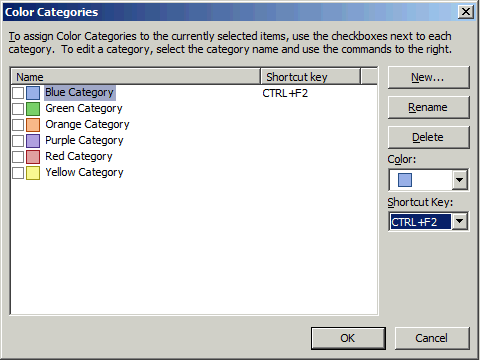
- I can categorize messages in Outlook. This is effectively their way of tagging.. Yes, the categories can be renamed to something meaningful.

- Cleanup – Conversation: OK, now we’re talking. This is a cool feature! It gets rid of all the previous messages in a conversation so you just have the latest one that contains all the history in it. You can run it on a specific message, a folder, or a folder and all its subfolders. This feature was created by someone who got tired of dealing with all the ‘Reply to All’ messages that quickly filled their inbox. Yes, the philosophy is send your message to everyone you know and then always use ‘Reply to All’. The idea is to be sure everyone knows what’s going on. Personally, I would use discussion forums.
- I can click an option to Ignore a conversation which sends all future responses to the selected message to the Deleted Items folder. Handy for those conversations I mentioned that you somehow find your name was added to the thread that don’t really interest you. But dangerous because you never know when that conversation will have been directed at you and you will miss it.
- OneNote: Like the Journal in Notes. I haven’t explored this much yet. I like my Lotus Notes Journal since it is synchronized with my BlackBerry.
- I can have it read my email to me (like NotesBuddy did many years ago, but for some typical, senseless reason, IBM dropped it)
- OCS (instant meeting and unified communications) has a great feature that shows the entire chain of command for a person so you can see where they are in relation to you in the company.

- Search: To clarify my response to Mat’s comments, I have added these screen shots. Search in Outlook now can search all of your mail including attachments. I don’t know when this was added, but it is now matching the basic full text search function of Notes, though without any of the advanced settings. (click to view)



Next, for Microsoft professionals who may not know Lotus software, here are some of the technology features you are missing, or at least I’m missing them:
- Classic pulldown menus – I hate this ribbon thing in Office. I would even live with that stupid animated paper clip if I could just get the classic pulldown menus back.
- Swiftfile – That great, free add-on that determines the 3 folders you will most likely want to file a message, then puts a link for each of them at the top of the message so filing the message is one click away. Outlook has a Move feature in the ribbon that let’s me pick from a list of 10 recently-used folders, but there is no other intelligence built into the folders offered and it’s not one click.
- Send and file – In Outlook, you can’t organize your sent messages into folders when you send them. For that matter, if you move them to a folder, they are removed from the sent folder (unless you copy of it to another folder, which means you then have 2 copies of the message.)
- Reply and include the attachment for editing – There is no way to include an attachment in a reply and edit the attachment before sending. Attachments must be saved from the original message, edited, and then re-attached to the reply.
- There is no way to put attachments in a specific location within the body of the email for contextual relevance.
- How can I customize the mail file design?
- Widgets. I want to build my widgets and use the Google widgets again. I expect there is a way to do this if I wanted to write some C# code.
- Doclinks – Oh, how I miss doclinks! The Microsoft way is to use URLs. But URLs don’t work for everything. It can’t create and send a link to something in Visual Studio or Product Studio or other software. Only things that are reachable with a browser can be hyperlinked. I find myself doing a lot of copy/pasting. Not to mention Notes doclinks will go to a replica of a database if you don’t have access to the specific location referenced when it was created. Oh, how I miss doclinks!
- Spell checking in Lync (instant messaging).
- I can’t view messages in the Deleted Items folder sorted by date/time deleted. So if you just deleted a message by mistake, you have to go hunt for it. Good luck.
- The selection tray like in Notes views and folders. The column on the left of every view where you can click to select a document or click and drag to select many. In Outlook you have to hold Ctrl or Shift when adding to a selection and if you slip on holding the Ctrl or Shift, you have to start over because the selection is lost.
- Message encryption. I can’t encrypt messages. That’s’ bad considering I have to email passwords on occasion. I know there are tools to do this, but encryption should be an intrinsic part of messaging.
- Tabbed windows. If you open a message in Outlook, it creates a separate window. I like the tabs in Notes better.
- Being able to add recipients by clicking Reply to All after first clicking Reply without having to go back and start over from the original message.
- Consistent applications all stored on one server using one client to access them. (Don’t say web browsers could replace it. Every app has different browser brand and version requirements.) Instead, I have a collection of applications installed on my computer. In some cases I have to remote control into the server to do my work. Visual Studio, Product Studio, Sharepoint websites, Exchange Management Console, Active Directory, SQL Server, …
- Being able to scroll through the directory to browse a list of groups or people (without having to bring up an address dialog).
- Ctrl-Break to interrupt processing. Outlook hangs as much as Notes does. At least in Notes I could usually type Ctrl-Break to get focus back. Not so in any Microsoft software.
- All Documents view. There is no one place to go and see all of your messages. This means you have to search or scan through each folder separately. Suddenly filing messages into folders becomes a liability for remembering where you filed it!
- Ability to add a message to multiple folders (without making multiple copies of the message)
- Save as Draft button. In Outlook, you close the message. Then it prompts if you want to keep the message in drafts. NOT intuitive.
- Ability to reorder folders to put them in the order you want, not only limited to alphabetical order. I find myself naming folders to affect their sort order rather than to make sense.
- Right double-clicking to close windows. Notes does this and I wish all software would pick up this standard. Another reason why browser apps are inferior to Notes apps. Brilliant! (unless you have a Mac)
- Left double-click to edit a document (or message or other file in Microsoft world).
- Discussion and teamroom databases. Yeah. How basic is that? Get all this email out of my Inbox! Don’t reply to all. Just post a response to a msg in the discussion where I can see the entire thread.
- Doclinks in the message header linking to the previous message within an email thread.
- Quickr Connectors to get the attachments out of my mail file and into a common place to share them. We do have Sharepoint, but it doesn’t work that way at all. Also, if you are looking at one of your files in Sharepoint and copy the URL to share with someone else, it probably won’t work for them.
- The ability to make an app quickly. OK, eventually I will learn the other software tools, but I need an app that was very simple to create and deploy in Notes. I have asked around and no one really knows how to do that using Microsoft software. One suggestion was to use InfoPath and Sharepoint.
- Did I mention doclinks? Wow, I never realized just how much I used them before. It really is all about the apps, isn’t it?
I have much to learn about the Microsoft software suite and I am sure I will find more things I like about it. But my personal preference is still Lotus Notes, Domino, Traveler, Sametime and Connections both from the system administration and development perspectives as well as the end user perspective. The cool thing is I’m getting to experience Microsoft software as implemented by the experts. Time will tell how that will influence me. And the reality is as long as I want to live and work in the beautiful Pacific Northwest, I have to accept the fact that Microsoft is my only choice at work these days. IBM doesn’t sell those products around here any more.
MTBF for Windows 64 bit OS
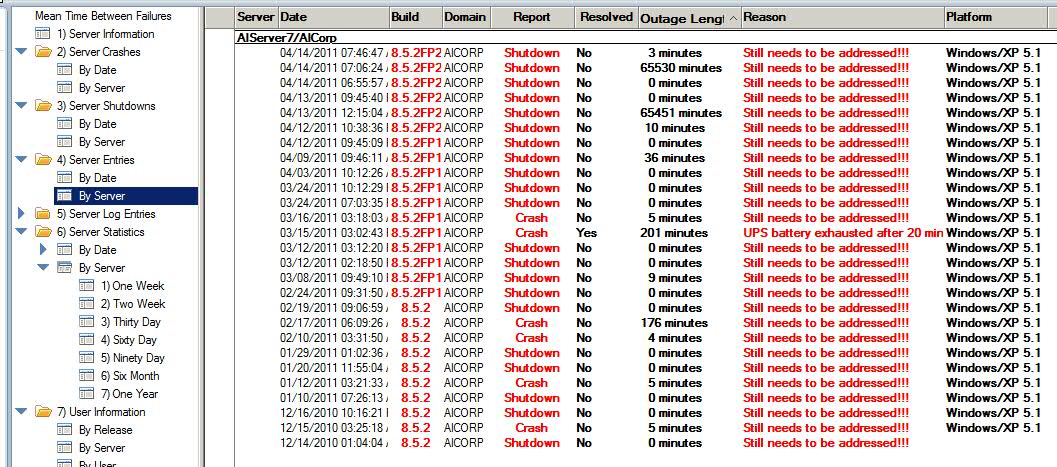
(Update May 4, 2016: version for Domino 9.0 on aix, Linux, Solaris, and Win32 posted here.) Thanks to John again. I have now posted the Windows 64-bit version of MTBF here on my website. The original post includes the database template and the 32-bit version of nmtbf.exe. The new post includes the 64-bit version of nmtbf.exe and the database template. The template is the same in both cases. Hopefully there will soon be a version for other OS. Perhaps it will even be added to the standard server install kit.
Here are a few screen shots of the type of information captured in the database:

The Lotus Forgot series: An alternative to a full Designer client on Mac or Linux and lesson on who develops applications
We don’t need a Designer client for the Mac or Linux. We need one for the people.
I understand the effort to create a full new instance of the designer client on a different platform is a daunting task. And in the end, who might use it? Developers. Some of those developers will use Macs at work. Some will be college and high school students. Some will be computer-savvy small business owners and entrepreneurs who serve as the CEO, CIO, developer, and user all in one. From IBM’s perspective, this may seem a rather small niche to dedicate the resources. It’s about ROI. So I propose a solution that would reach a much larger market and have a broader impact in enabling people to serve their own simple development needs:
Add basic development functionality back into the Notes client.
Yes, make the Notes client as it once was in the days before R5 when the ability to create applications was an integral part of the Notes client. What would it include? View development (which is already there), Formula language (which is already there in some capacity), and form development. Some agent development probably too. Provide people with enough to be able to serve their own basic needs without overwhelming them with complexity.
Why do this? Simple. Empower the people. Power users have always existed. They were what made the early versions of Notes so successful. It was easy for them to create their own tools in Notes and they loved it. LOVED IT! I can recall many times in the R3/R4 days when users came to me with a database that they had created or made a copy and modified it and wanted to share it with other people on their team. I took it, maybe cleaned it up a bit, and put it on the server where their whole team benefited. This was the root meaning of collaboration: Not just sharing data, but sharing solutions. By the users, for the users. It was truly Rapid Application Development (RAD). Before they had Notes, people were doing this in 1-2-3, Access, FoxPro, etc. It is no coincidence that the Notes client began losing favor among end users as soon as they lost their ability to explore what Notes can do by creating their own applications. The greatest advocates of Lotus Notes are those who can create applications in it.
People did not stop creating their own applications when the designer code was removed from Notes. But now they just do it in other tools like Access and Excel. Sure, there is also Sharepoint and Quickr, but those do not provide for PERSONAL tools. People will not “play” there they way they do with other software. Sadly, while users today are far more computer-savvy than they were in the 1990’s, they are being denied the opportunity to apply those skills to their job, at least where Notes is concerned. As a result, Notes has lost its appeal. Users have been driven away to other tools and no longer know (and have no motivation to learn) what could be done in Lotus Notes. To them it is no longer a PERSONAL productivity tool. Now the only way to get an application in Notes is to request it from the gatekeepers of I.T. It’s like building a Lego kit and giving it to a kid and then saying they have to bring it to you if they want to build something different with the pieces. Sure, the designer client is “free”, but it is not given to employees and for the most part they don’t even know it exists or how to get it.
If we are sincere in our belief that the power of collaboration and Open Source is truly for the benefit of all, then it should be made accessible to all. It should not be hoarded by the professional Domino developers of the world. It should not be locked out by the administrator who doesn’t want the additional work to manage the applications nor the I.T. director who doesn’t want to deal with losing control of application development process and his feeling of importance. Do not waste time defending this practice with the “good ol’ boy” mentality claims like “But the users don’t know how to create good applications.” or “their rights must be restricted for their own good or for the good of the company.” This is Social Business. This is the definition of Web 2.0. (See video)
Eliminate the hierarchy, eliminate the red tape. Empower the people. The more you empower the people around you, the more successful you will be. The more they must depend on you, the less you will be able to achieve. It’s the axiom of good leadership.
IBM may never feel justified in creating a full-blown designer client for Mac OS or Linux. They may never go back to having the simple developer client for the masses that was so successful. So while you wait for IBM to decide what to do, I suggest this: Let your people know the designer client exists. Make the designer client available to anyone who asks for it. I would even encourage them. If you have any programmers in the company that code in other software, be sure to give it to them.
Notes was founded on the principle of giving people the ability to create their own custom applications. (The History of Lotus Notes) That principle has clearly been forgotten.
If you agree, please vote for this idea at IdeaJam


 The Notes Guy in Seattle